
Email setup guide
Set up email in Outlook for Mac
Follow these steps to add your iHwy-hosted email account to Microsoft Outlook on a Mac.
Your domain
Wherever this guide says yourdomain.com, use the part of your email address after the @ sign. For example, if your address is jane@example.org, your server is mail.example.org and your username is jane@example.org.
Steps
- Open Outlook and choose Outlook, then Settings, then Accounts. Click the + button and choose New Account.
- Enter your email address and click Continue. If Outlook asks for a provider, choose IMAP/POP.
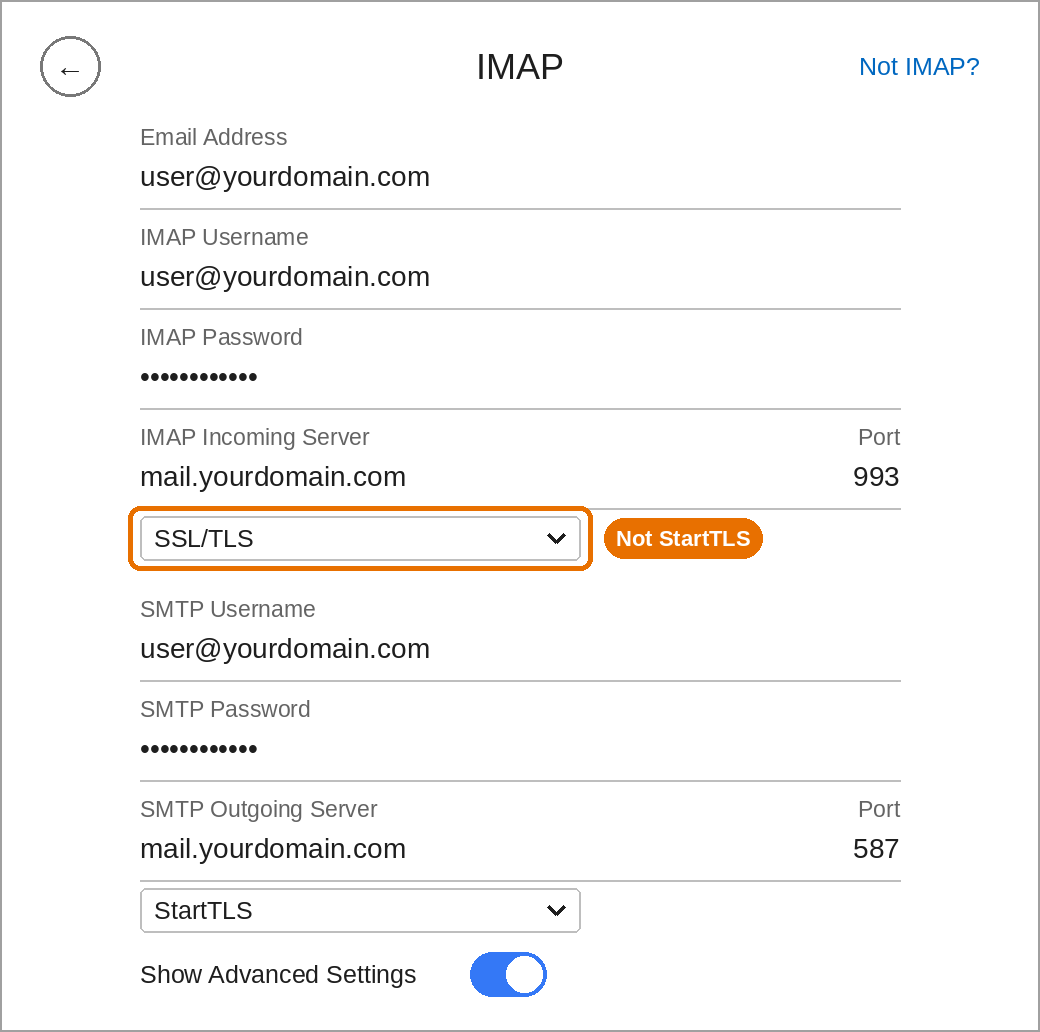
- Turn on Show Advanced Settings and enter the settings shown below.
- Click Add Account.
Settings to check
- Incoming: mail.yourdomain.com, port 993, encryption SSL/TLS (not StartTLS).
- Outgoing: mail.yourdomain.com, port 587, encryption StartTLS.
- Username: your full email address.
For the full list of server settings, see the Email Setup Guide.
Still not working?
See the troubleshooting tips at the end of the Email Setup Guide, or open a support ticket and send us a screenshot of your settings.